
Sharing an external video
Follow these steps to share a YouTube video with your student during your session:
First you must copy the video URL from the Youtube website. To do this:
- Go to Youtube.com
- Search for the video you would like to share and click to open the video
-
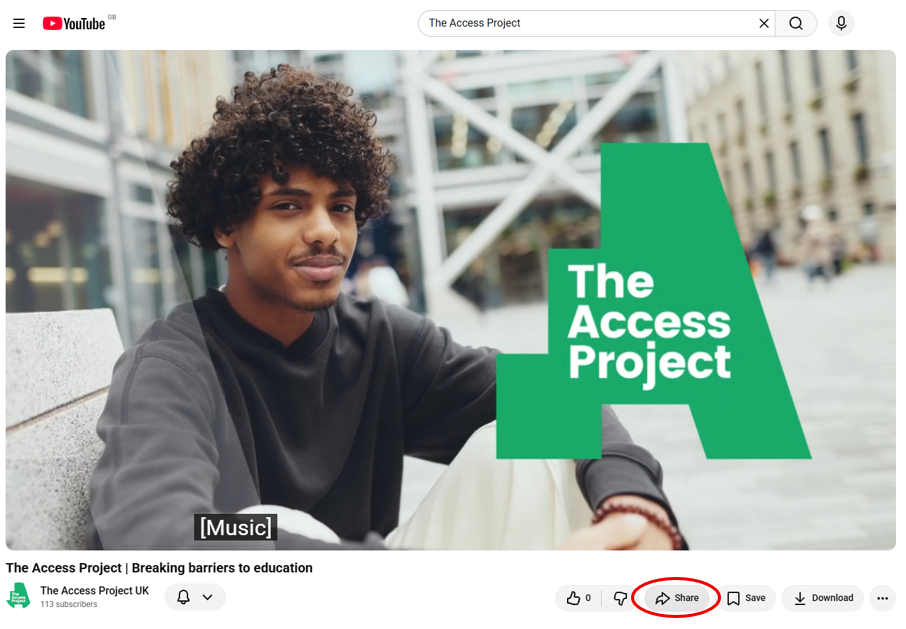
Below the video, click 'Share'
-
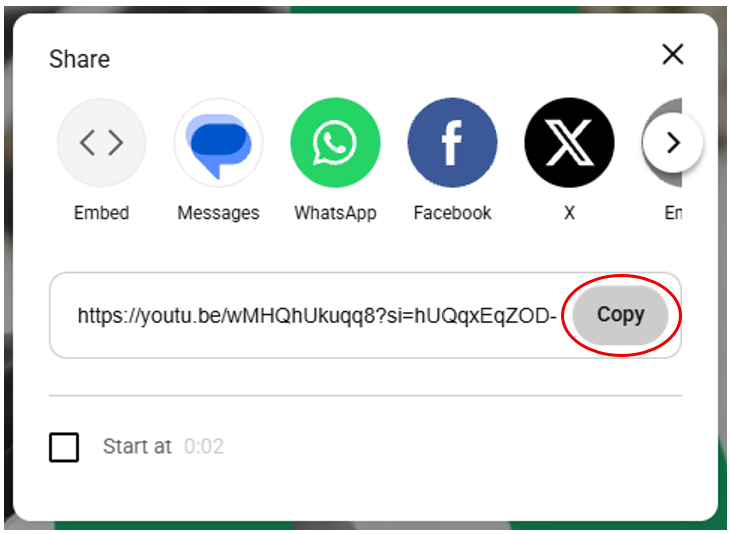
From the pop up window, click 'Copy'
-
This will now be ready to paste directly into the online classroom.
(Or you can paste this into a word document to save and copy into the classroom later.)
Please note: Youtube, Vimeo, Instructure Media, Twitch, Dailymotion and media file URLs (e.g. https://example.com/xy.mp4) are supported. Videos will not show in the session recording.
Sharing this video in the online classroom:
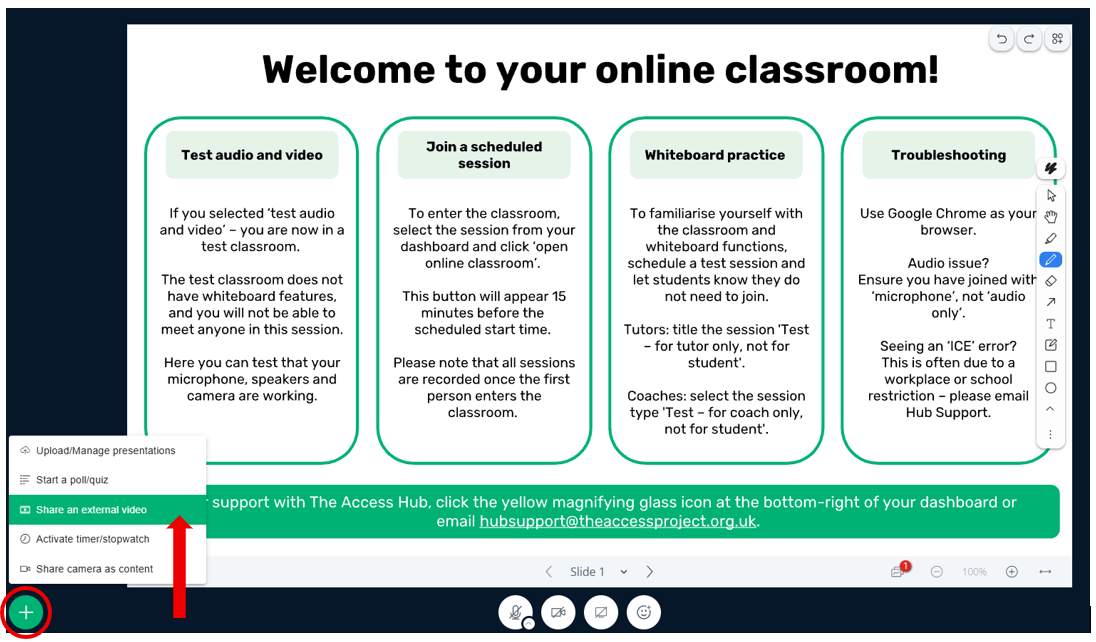
- Click the green Actions button in the bottom left corner of the classroom
-
Select 'Share an external video'
-
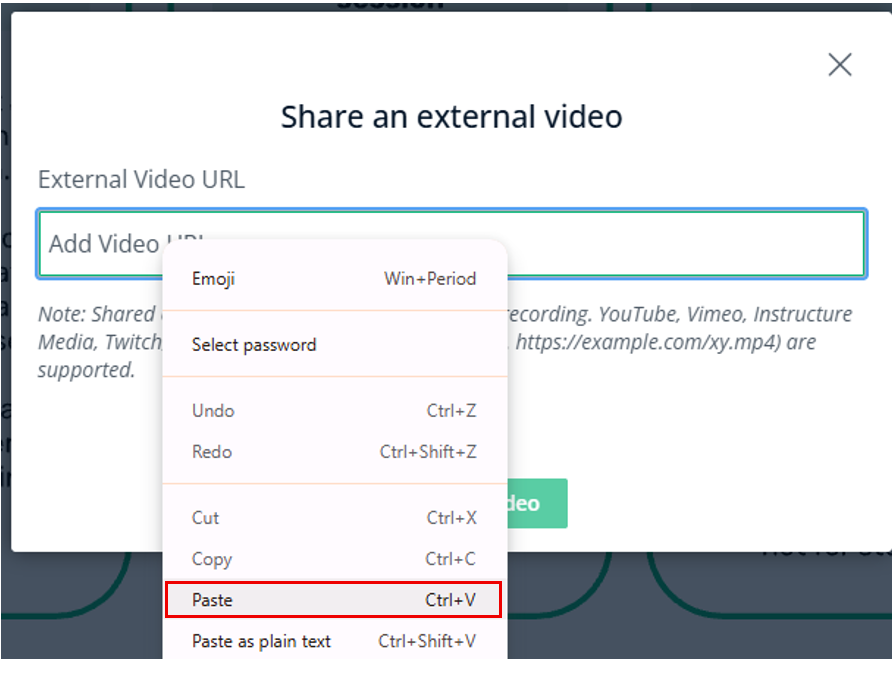
Copy and paste the YouTube URL into the box that appears
(Click into the 'Add Video URL' text box and use keyboard shortcut Ctrl+V to paste, or right click into the textbox and click 'Paste' from the drop down menu)
-
Click 'Share new video'
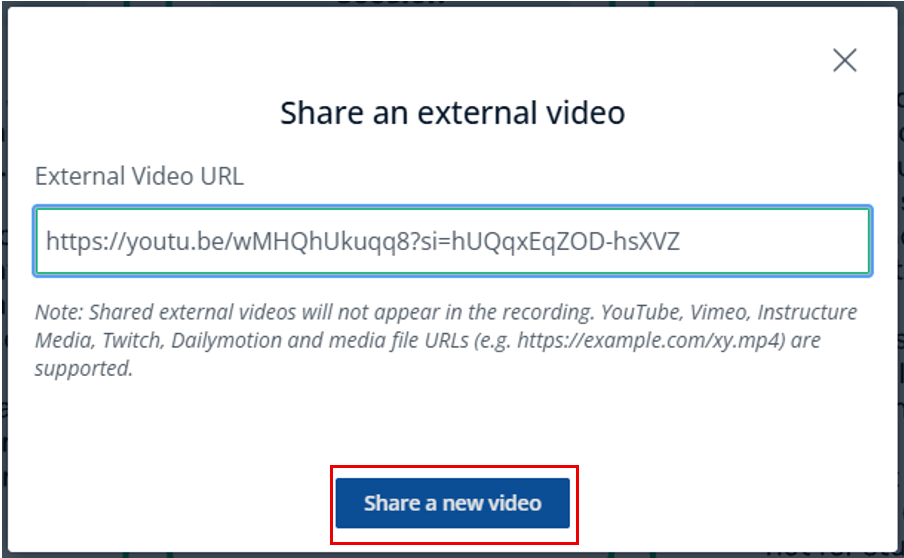
The video will now play on the whiteboard for both you and your student.
During the Video
- You and your student can use the normal YouTube settings within the player
- Students can adjust the volume on their side as needed
Stopping the Video
When you're ready to stop sharing the video, you can:
- Click the Actions button in the bottom left corner again, or
- Click the 'X' in the top right corner of the video player
Then select 'Stop sharing external video'
